

If you deliver presentations at the office, you’ll often look for ways to create a good PowerPoint presentation…. But let’s face it: most meetings are pretty boring. They are also repetitive. So, if you are a speaker, and you deliver Microsoft PowerPoint slideshows, they can be a challenge. As the speaker, we want to do something a little different to capture our audience’s attention. Likewise, our target audience will always want to see an interesting presentation instead of the same old boring set of presentation slides. So, below are a few best practices to create more effective presentations without a lot of additional effort.
I’m embarrassed to say that, just this past week, I delivered a terrible PowerPoint speech to my office. Keep in mind, I’ve been teaching public speaking skills for over 20 years. I also deliver two to four classes, workshops, or speeches every week. So, if I can fall into this trap, anyone can.
Break Your Presentation into Easily Digestible Segments.
I spent all last weekend designing an internal presentation for my company. We have a bunch of dramatic and important changes going on right now. Everyone is pretty excited about these changes, but they are also a little nervous. Knowing this, I spent a lot of time laying out a lot of the details about the new processes. I even skipped church last Sunday to make sure the presentation was perfect. (Yes, I feel a little guilty about it.)
The Monday morning presentation started pretty well. My energy and examples kept everyone both informed and entertained. Then, I got into my PowerPoint slideshow with all of the details. By the time I got to the third slide, I started getting interrupted with questions. I confused everyone with too much data. When they got confused, they got agitated.
I talked to one of my most senior instructors later in the day. She said, “Doug, you presented the information well, but you gave them too much data in too short a time. So, it got confusing. You should have broken that presentation up into a few pieces.” I laughed because that is the exact advice I would have given to one of my class members.
It just goes to show that a successful PowerPoint presentation has way less to do with using the right fonts and different colors, and way more to do with choosing engaging subject matter, avoiding too much information, and succinctly covering the key ideas. So if you’re worried that you’ve got a bad PowerPoint presentation or that it’s not “pretty” enough, I would suggest not to overthink the design too much. Instead, just make sure you’ve got the most important information in your slide show.
The good news, then, is that anyone can make a compelling presentation if they just take the advice I should’ve taken for myself. So, in this post, I’m going to get back to basics and review some of the important ways to improve a speech. (By the way, if three tips aren’t enough, make sure to visit Public Speaking 101 for a BUNCH more.)
1. Create a Better Presentation, First. Then, Create Better PowerPoint Presentations.

If you are an avid reader of our blog posts or podcast listener, you’ll know that PowerPoint is a visual aid. It isn’t the actual speech. A big mistake that people often make is creating the slideshow first, then trying to figure out what to say. On the weekly webinar that we do to let people know about Fearless Presentations ®, I call this the Kung Fu Movie Technique. When I was a kid, my brother and I used to watch Bruce Lee movies on Saturday morning. They were always fun because they were dubbed in English. The mouth movement never really matched the sound.
Presenters do this as well. By starting with your PowerPoint slideshow, you’ll later have to insert words to fit the slide. Instead, Designing a Good Speech first, and your presentation will be designed a lot better. Then, insert visual aids that will help you explain the content of your speech better.
Here are some additional tips:
Start with Your Message
Before even opening PowerPoint, determine the key message you want to convey. Ask yourself, “What is the one thing I want my audience to remember?” This becomes the foundation of your speech. Knowing your message will produce a much better presentation than using the best fonts, slide transitions, or bright colors.
- Define Your Objective: Clearly define the objective of your presentation. Is it to inform, persuade, motivate, or entertain? This will shape how you craft your message.
- Identify Your Audience: Tailor your message to your audience. Consider their background, interests, and what they expect to gain from your presentation.
- Craft a Strong Opening: Your opening should grab attention and succinctly introduce your key message. A compelling question, a surprising fact, or a relevant story can be effective.
Practice Your Delivery
Rehearse your speech multiple times. This allows you to work on your timing and pacing. It also helps you become more familiar with your material and reduces reliance on your slides. Because, the truth is, the best PowerPoint decks are the ones that you’re not able to use as a crutch. Rather than holding up your presentation, the slides should be created to complement the delivery of your most important points.
- Vary Your Tone and Pace: Use variations in tone and pace to keep your speech engaging. A monotonous voice can lose the audience’s attention, while variation can emphasize key points.
- Use Non-Verbal Cues: Body language, facial expressions, and eye contact can greatly enhance your delivery. Practice using gestures to emphasize points and engage with your audience.
- Record and Review: Record your practice sessions. Watching yourself can reveal habits or quirks you might not be aware of and help improve your overall delivery.
Design Slides for Emphasis
Once your speech is solidified, create PowerPoint slides that emphasize key points. Use minimal text and include images, graphs, or charts that complement your message. Remember, slides are there to support, not replace, your speech.
- Use High-Quality Visuals: Ensure that any relevant charts, graphs, or images are of high quality. Poor quality visuals can detract from your message.
- Limit Text on Slides: Use bullet points or short phrases to communicate your main ideas. Slides overloaded with text can overwhelm the audience members and distract them from your spoken words.
- Consistent Design: Use a consistent design template. A cohesive look keeps the focus on your message and provides a professional appearance. Avoid excessive animations, special effects, or transitions that can be distracting.
2. Insert More Stories and Examples.
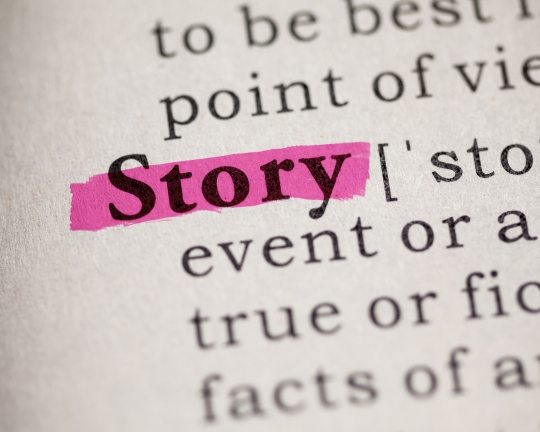
The backbone of every presentation is the examples and stories that you tell to clarify your points. This is a major focus of our presentation skills classes. It is a major focus because most people overlook it. They will say, “My audience doesn’t like stories,” or “They just want the data.” This is untrue. Let me give you a couple of examples. (By the way, for fun ways to add stories into your PowerPoint presentations, see Anecdotal Stories for Speeches.)
For additional details, see Outline for a Persuasive Speech.
Google I/O Keynote.
In one of the recent Google I/O Keynotes, CEO Sundar Pichai gave a very short, easy-to-understand example to clarify the complex concept of “Agent Mode” in the Gemini app.
He started with the technical announcement:
And today, we are excited to announce that our Gemini SDK is now compatible with MCP tools. These technologies will work together to make agents even more useful. And we are starting to bring agentic capabilities to Chrome, Search, and the Gemini app. Let me show you what we are excited about in the Gemini app. We call it Agent Mode.
If you were like me, at this point, you’re probably thinking, “SDK? MCP? Agents? Apps? What the heck is he talking about? So, he immediately pivoted to a relatable story to clarify the tech.
Say you want to find an apartment for you and two roommates in Austin. You’ve each got a budget of $1,200 a month. You want a washer/dryer, or at least a laundromat nearby. Normally, you’d have to spend a lot of time scrolling through endless listings. Using Agent Mode, the Gemini app goes to work behind the scenes. It finds listings from sites like Zillow that match your criteria and uses Project Mariner, when needed, to adjust very specific filters. If there’s an apartment you want to check out, Gemini uses MCP to access the listings and even schedule a tour on your behalf.
And it’ll keep browsing for new listings for as long as you need, freeing you up to do the stuff you want to do, like plan the housewarming party. It’s great for companies like Zillow bringing in new customers and improving conversion rates.
As you can see, the example or the story doesn’t have to be filled with flowery language to work. All the story is really doing is taking something complex and explaining it in a way where the listener can create an image in his or her mind of the concept. In this example, you likely had memories of searching through printed ads or website after website trying to find a new place to live. When the speaker said, “washer/dryer”, you likely had an image of a washer and a dryer pop into your head.
He didn’t explain the algorithm (Project Mariner) by showing code. Instead, he explained it by showing the result (getting your weekends back).
These short examples are the essence of great communication.
NVidia Almost Goes Bankrupt.
In his commencement address at National Taiwan University, Jensen Huang (CEO of NVIDIA) used a personal story to explain a major technical pivot in his company’s history. Notice how he explains the technical struggle (curves vs. triangles) very briefly, but spends the majority of the time focusing on the human struggle (admitting a mistake).
“Our first application was 3D graphics for PC gaming. We invented an unconventional 3D approach called ‘forward texture mapping and curves.’ Our approach was substantially lower cost, and we won a contract with Sega to build their game console.
However, after one year of development, we realized our architecture was the wrong strategy. If we completed Sega’s game console, we would have built inferior technology, be incompatible with Windows, and be too far behind to catch up. But we would be out of money if we didn’t finish the contract. Either way, we would be out of business.
I contacted the CEO of Sega and explained that our invention was the wrong approach. I suggested that Sega find another partner, and that we could not complete the contract. We had to stop. But I needed Sega to pay us in whole, or NVIDIA would be out of business.
I was embarrassed to ask. But to his credit, and my amazement, the CEO of Sega agreed. His understanding and generosity gave us six months to live. With that, we built the Riva 128. Just as we were running out of money, Riva 128 shocked the young 3D market. It put us on the map, and saved the company.”
He was making a highly technical point. But he used a story to explain it and add a little fun an emotion into his address. You can do something similar in your PowerPoint presentations as well.
A Few Tips about Using Stories or Examples in Your PowerPoint Slideshows.
Here are a few tips to remember when using stories and examples in your PowerPoint presentations.
- Utilize Personal Experiences: Personal stories create a connection with your audience. Share relevant experiences to make abstract concepts more tangible and relatable. This humanizes your presentation and makes it more engaging.
- Incorporate Case Studies: Use case studies to provide real-world examples of how your concepts or strategies work in practice. This helps in illustrating the practical application of your ideas and gives your audience a clearer understanding.
- Use Analogies and Metaphors: Analogies and metaphors are powerful tools for explaining complex ideas in simpler terms. They help in drawing parallels that the audience can easily grasp.
- Involve the Audience with Hypothetical Scenarios: Pose hypothetical situations related to your topic. This encourages the audience to think and engage with the content, making your presentation more interactive and thought-provoking.
- Add Visual Elements to Stories: Enhance your stories with relevant images, videos, or infographics. Visual elements can make your stories more memorable and impactful.
- Balance Data with Narratives: While data is important, narratives make it digestible. After presenting data, follow up with a story that puts the data into a real-world context. This balances the analytical with the emotional, catering to different audience preferences.
- Prepare and Practice Storytelling: Good storytelling doesn’t happen by accident. Prepare your stories in advance and practice delivering them in a compelling manner. Pay attention to pacing, tone, and body language to maximize impact.
By integrating more stories and examples, your presentation becomes more than just a transfer of information; it becomes an engaging experience that resonates with your audience. Remember, stories are not just entertaining – they are powerful tools for clarification, connection, and communication.
3. Give Your Audience a Nice Presentation Handout.

An easy way to create better PowerPoint presentation slides is to get away from your slideshow from time to time. A well designed presentation handout can really help! I use this one a lot in workshops and convention breakout sessions. In today’s world, most people think of a speech as a person clicking bullets and talking about slides. So, this is an easy tip that audiences will appreciate. Not only is it more interesting than a normal slide deck, but your audience will likely retain more of the important details as well.
A few months ago, I delivered a breakout session at a Dental convention. The topic was how to use presentations to gain customers. Although I created a great PowerPoint presentation, I also created a nice handout for them. I used the handout more than the slideshow. I gave them space on the handout to create notes related to their specific practice. I’ll wager that many of them kept that handout even though they likely threw away a lot of other material from the convention. The handout had both my gems of wisdom along with their interpretation of the content — their notes.
Here Are a Few Quick Tips That You Can Use For Making Nice Presentation Handouts:
- Design for Clarity and Utility: Ensure your handout is clearly structured, visually appealing, and easy to follow. Use headings, bullet points, and adequate spacing. The goal is to make the information accessible and useful for your audience.
- Include Key Points and References: Summarize the main points of your presentation in the handout. Provide references or links to additional resources for those who want to explore the topic further.
- Facilitate Note-Taking: It’s a good idea to incorporate spaces for notes in your handout. This encourages the audience to jot down key insights and how they relate to their specific contexts, enhancing the retention of your presentation’s content.
- Integrate Interactive Elements: Add elements like checklists, worksheets, or thought-provoking questions. These interactive components can make the handout a valuable tool during and after your presentation.
- Use High-Quality Material: The quality of the handout material reflects on the perceived quality of your presentation. Use good quality paper and ensure the printing is sharp and professional.
- Personalize the Handout: Tailor the handout to your audience. For example, in the case of the dental convention, including spaces for dentists to relate the content to their practice made the handout more relevant and memorable.
- Offer Digital and Physical Copies: Provide both digital and physical versions of the handout. A digital copy can be a lasting resource they can refer back to, while a physical copy is useful for immediate engagement and note-taking. Here’s a bonus tip: Include a link to a YouTube video, audio, or other digital-only content in the digital copy. This way, attendees will feel compelled to revisit the handout even after the presentation is over.
For details about Effective Handouts for Presentations, click here (and yes, there is a handout for that post.)
Whenever it Comes to Making Better Powerpoint Presentations, Handouts are One of the Best
By offering a well-designed and thoughtful handout, you not only provide a valuable resource but also enhance the overall experience of your audience. Handouts serve as a tangible reminder of your presentation, aiding in longer-term retention and application of your ideas. They can be particularly effective in settings like workshops or conventions, where attendees are bombarded with information and appreciate materials that stand out in terms of utility and relevance.